


How To Open and use a shared mailbox in Outlook Web Application (OWA)
A shared mailbox makes it easy for a group of people to monitor and send email from a public email alias like [email protected]. When a person in the group replies to a message sent to the shared mailbox, the email appears to be from the shared address, not from the individual user. You can also use the shared mailbox as a shared team calendar. A shared mailbox is also suitable for use as a "noreply" email account.
You must have Full Access permission to the mailbox you want to open. If you do not have it, contact your administrator to grant access before proceeding.
Open shared mailbox in a New Window
- Sign in to OWA using your own email address and password.
- In the upper-right corner of the Outlook window, click on your profile picture or initials to open your account menu.
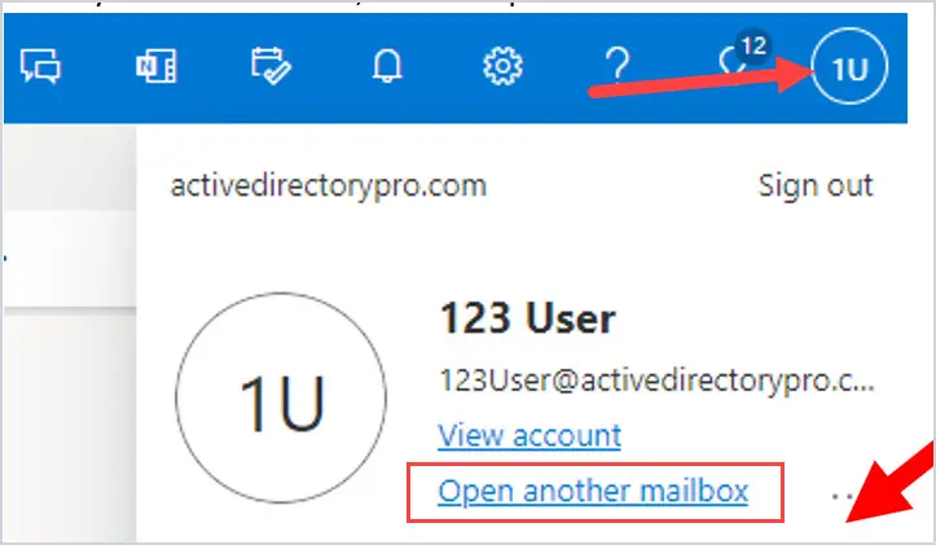
- Select Open another mailbox from the menu.
- Enter the email address of the mailbox you want to open.
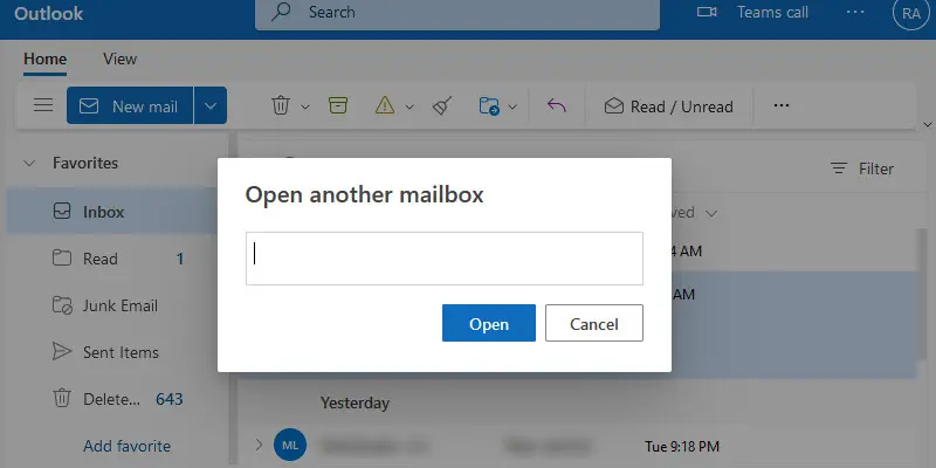
- Click Open; the mailbox will appear in a new browser window.
Add the shared mailbox so it displays under your primary mailbox
If you want to monitor the email from your primary mailbox and the shared mailbox at the same time, use this method. After you complete this task, the shared mailbox and its folders are displayed in the left navigation pane each time you open Outlook on the web.
- Sign in to your account in Outlook on the web.
- For Exchange Online mailboxes, right-click Folders in the left navigation pane, and then choose Add shared folder or mailbox. For Exchange on-premises mailboxes, right-click the name of your primary mailbox (such as Molly Dempsey) in the left navigation pane, and then choose Add shared folder or mailbox.
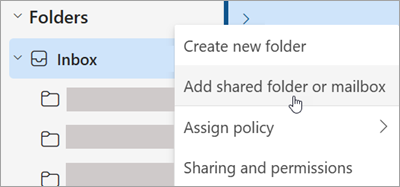
- In the Add shared folder dialog box, type the name of the shared mailbox you are a member of, such as [email protected].
The shared mailbox displays in your Folder list in Outlook on the web. You can expand or collapse the shared mailbox folders as you can with your primary mailbox. You also can remove the shared mailbox from your Folder list. To remove it, right-click the shared mailbox, and then select Remove shared folder.
Receive notifications of new messages in a shared mailbox
To receive notifications of new messages in the Inbox of a shared mailbox, you must open the shared mailbox in a separate browser window.
Open the shared mailbox in a separate browser window
Use this method if you want to view and manage the email for the shared mailbox in its own browser window. This method also lets you receive notifications of new items in the Inbox of the shared mailbox.
- Sign in to your account in Outlook on the web.
- On the Outlook on the web navigation bar, select your name. A list appears.
- Select Open another mailbox.
- Type the email address of the other mailbox that you want to open, and then select Open. Another Outlook on the web session opens in a separate window, allowing access to the other mailbox.
Tip: If you mistype the email address of the mailbox, the result is "No match was found". Try typing the email address again.
Send email from the shared mailbox
- Choose New mail above the folder list. A new message form opens in the reading pane.
- At the top of the message, choose More actions > Show From.
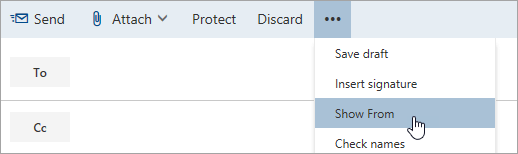
This option shows you that the people who receive the email message will see it comes from the shared mailbox and not from your own email account.
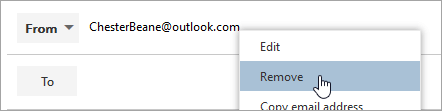
- The first time you use the shared mailbox, you need to add the address to the options available in the From drop-down list:
- Right-click the From address and choose Remove.
-
- Type the shared address. The next time you reply from the shared mailbox, its address will appear as an option in the From drop-down list.
- To add recipients, type the name of anyone who is in your contacts folder or organization's address list, or type the email address in the To or Cc box. The first time you enter a person's name, Outlook on the web searches for that person's address. In the future, the name is cached so it resolves quickly.
- Type a subject.
- Type the message you want to send.
- When your message is ready to go, select Send.
Reply to mail sent to the shared mailbox
The first time you reply to a message sent to the shared mailbox, you need to add the shared address to the From drop-down box. Here's how to do that:
- Open Outlook on the web and go to your shared mailbox.
- Open a message that was sent to the shared address.
- Select Reply.
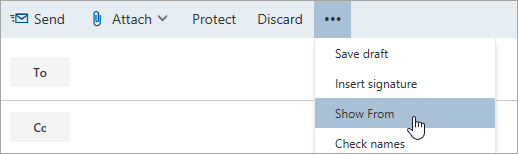
- At the top of the message, choose More actions > Show From.
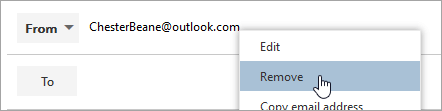
- Right-click the From address and choose Remove.
- Type the shared address and send the message. The next time you reply from the shared mailbox, its address will appear as an option in the From drop-down list.

